If you can not capture text / dimension from your drawing in QA-CAD, please click here to see this OCR tutorial.
QA-CAD GD&T capture problem:
If you can not capture GD&T feature control frames in QA-CAD, please check if our GD&T font file, GuthCAD-GDT.ttf, has been installed in your PC.
How to check: go to Fonts Settings in Control Panel in your PC and type GuthCAD-GDT(please click here for your reference). If you can not find the GuthCAD-GDT.ttf, re-install QA-CAD and reboot your PC. Then check GuthCAD-GDT.ttf in Fonts Settings again.
3 Steps to Register the software
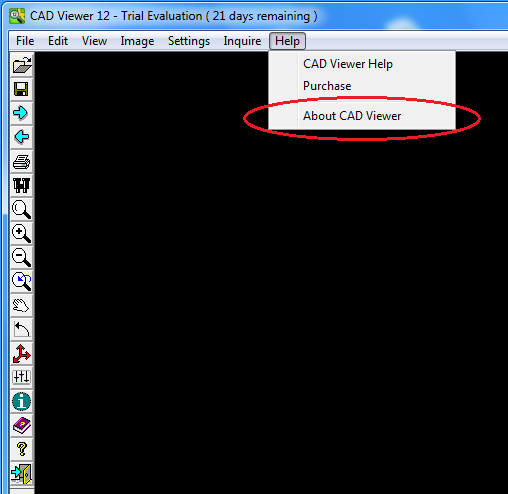
Step 1 - Click on 'About CAD Viewer' under help menu:
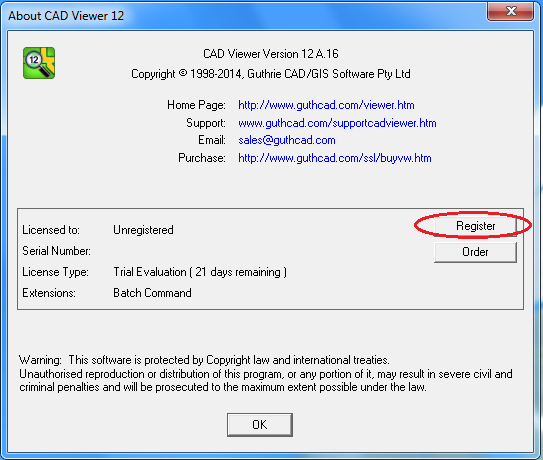
Step 2 - Click on 'Register':
Step 3 - Enter both the License Name and Keycode exactly as supplied.
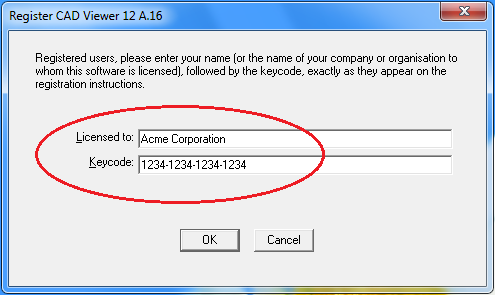
Click 'OK' and your software will be registered.
Keycode / registration problems
'Registration details incorrect' message
If you get a 'Registration details incorrect' error message when attempting to register the software, check:
- have you entered both the License Name and Keycode exactly as supplied?
- are you trying to enter the Serial Number instead of the Keycode?
- is the software the same major version number as the Keycode was issued for?
e.g. A keycode issued for v 6.0 of the software will not work with v.
7.0, and vice versa. You need to do one of the following:
(1) download the correct version.
download the latest software  here
here
download previous versions here
(2) if you have lost your keycode information, send a request to our software support to get your keycode resent to you.
(3) if you are eligible for a free upgrade to the latest major software
(registered users are eligible for free upgrades for 12 months from the
date of purchase) but have not received a new keycode, send a request
to to get your new keycode.
(4) Purchase an upgrade to the latest software
Software reverts to Trial Mode
If the software successfully registers, but reverts to trial mode the
next time the software is started, re-run the software 'as
administrator' and then re-register the software. E.g. in Vista right
click on the CAD Viewer deskop icon, and select 'Run as Administrator.'
Getting the latest software version
The
CAD Viewer software is being updated on a regular basis. All updates
are free to registered users who purchased the software within the last
12 months. Simply go the download page and download the latest
software. (If there has been a major upgrade since your last download
you may also need to request a new keycode.)
Download the latest release CAD Viewer here!
If your registration is outside of the 12 month free upgrade period you
may be required to purchase an upgrade license in order to get the
latest software.
Upgrade to the latest CAD Viewer here!
If you have discovered a software error, it is always
recommended to download the latest version of the software prior to
reporting the bug, since chances are it has already been fixed.
The complete CAD Viewer user manual is included in the download
software. Open the Help file via Start > All Programs > CAD Viewer > CAD Viewer User Guide.
A PDF version of the CAD Viewer user manual is also available. It may be downloaded here:
(To download, right click on the link and select 'Save Target As...')
Known problem running Help file on a network drive
If the software is installed on a network drive the online help may not be accessible. The online help contents may be visible in the left hand panel, but the right hand panel may display a message such as 'Action cancelled' or 'Internet Explorer was unable to link to the web page you requested.'
2 possible solutions are:
(1) Install CAD Viewer on your local drive.
(2) Download and run 'HHReg v1.1 - HTML Help registration utility' and add the CAD Viewer help file vwhelp4.chm to the list of .CHM files explicitly allowed to run from a network drive.
Archived Software versions
Archived versions of CAD Viewer are available here.
Report a Software Error
Please send as much detail as possible about the problem being experienced.
-
include the exact version of the software as displayed in the CAD
Viewer 'About' dialog. (It is also recommended to download the latest
software prior to reporting a bug, see above.)
- write down as much detail as possible about the error, and the steps to repeat it.
- if a bug is demonstrated by, or only occurs with a particular drawing then it should be sent if at all possible.
Email Technical Support
Technical support may be obtained by sending an email to our 'Technical Support' email. See here.
Technical support is available to both registered and unregistered users of CAD Viewer
Q. When I want to launch AutoCAD® 2000, I
go directly to the .dwg file and double click the file. Now that I
have downloaded and used the Cad Viewer software, when I double
click the .dwg file it launches Cad Veiwer instead of AutoCAD. Is
this fixable?
A. Yes.
- in Windows Explorer select Tools > Folder Options > File Types
- in the Registered File Types locate 'DWG - AutoCAD Drawing'
- select 'Advanced'
- from the Actions list highlight 'open' and click 'Set as Default'
- click ok, ok
In the Actions list you should initally see 'CAD Viewer' listed
in bold, indicating that it is the default application for opening DWG
files. After setting 'open' as the default, 'open' will change to
bold. The CAD Viewer installation does not ever touch the 'open' item,
so in theory AutoCAD should now be set to the default application for
opening DWG files.